Edit videos from your clips on your iPhone.
Pick your clips. Chockstone names a format that fits, shows the plan with a reason for each choice, and cuts the video on your phone. You change what you want and approve it.
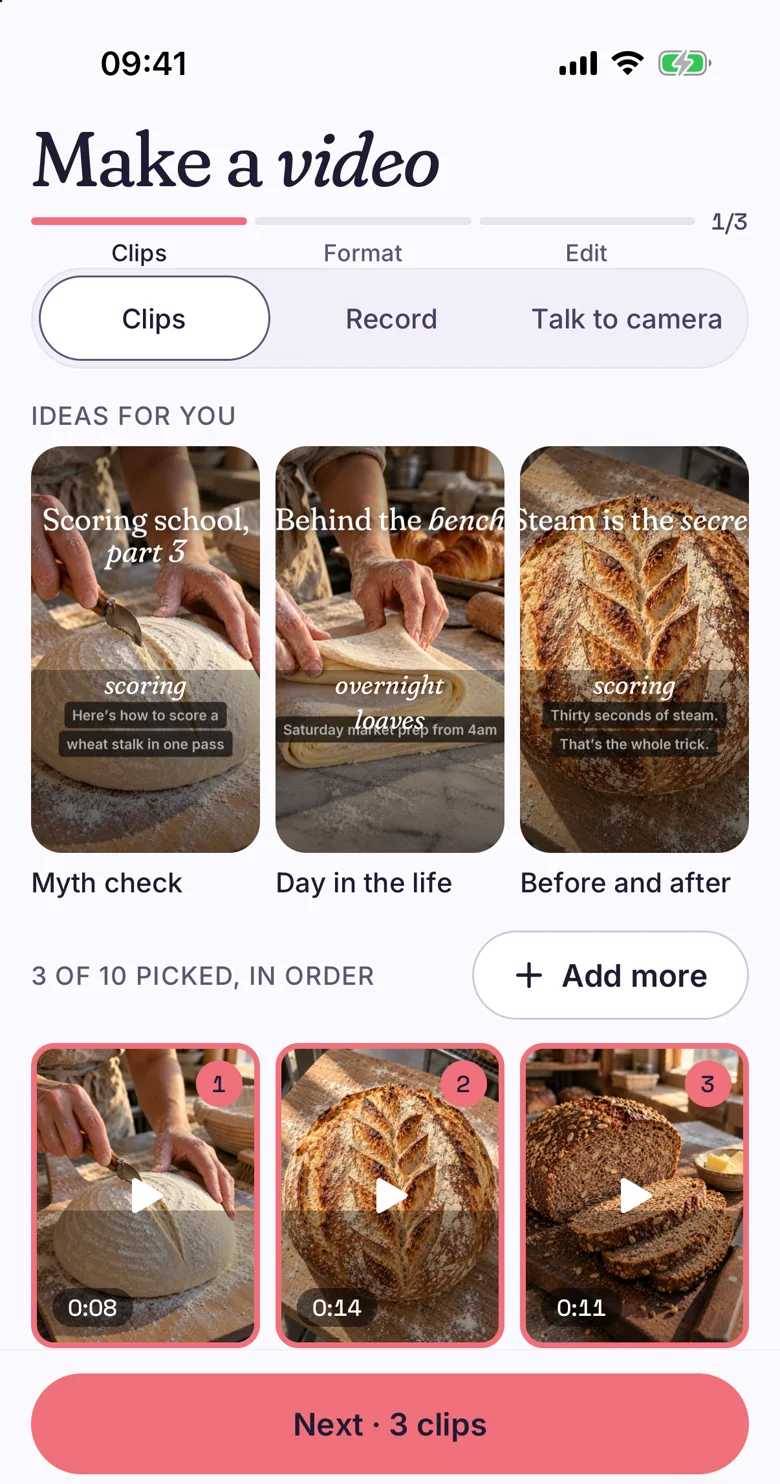
Clips in, an approved video out.
Make has three steps: Clips, Format, Edit. In step one you pick clips from your camera roll and they stay in the order you tapped them. Ideas for you sit above the clips as posters, such as Myth check, Day in the life and Before and after.
Clips is the default way in. Record and Talk to camera sit beside it in the same row, so a video you film now follows the same path.
Press Next and Chockstone looks at the clips you picked.
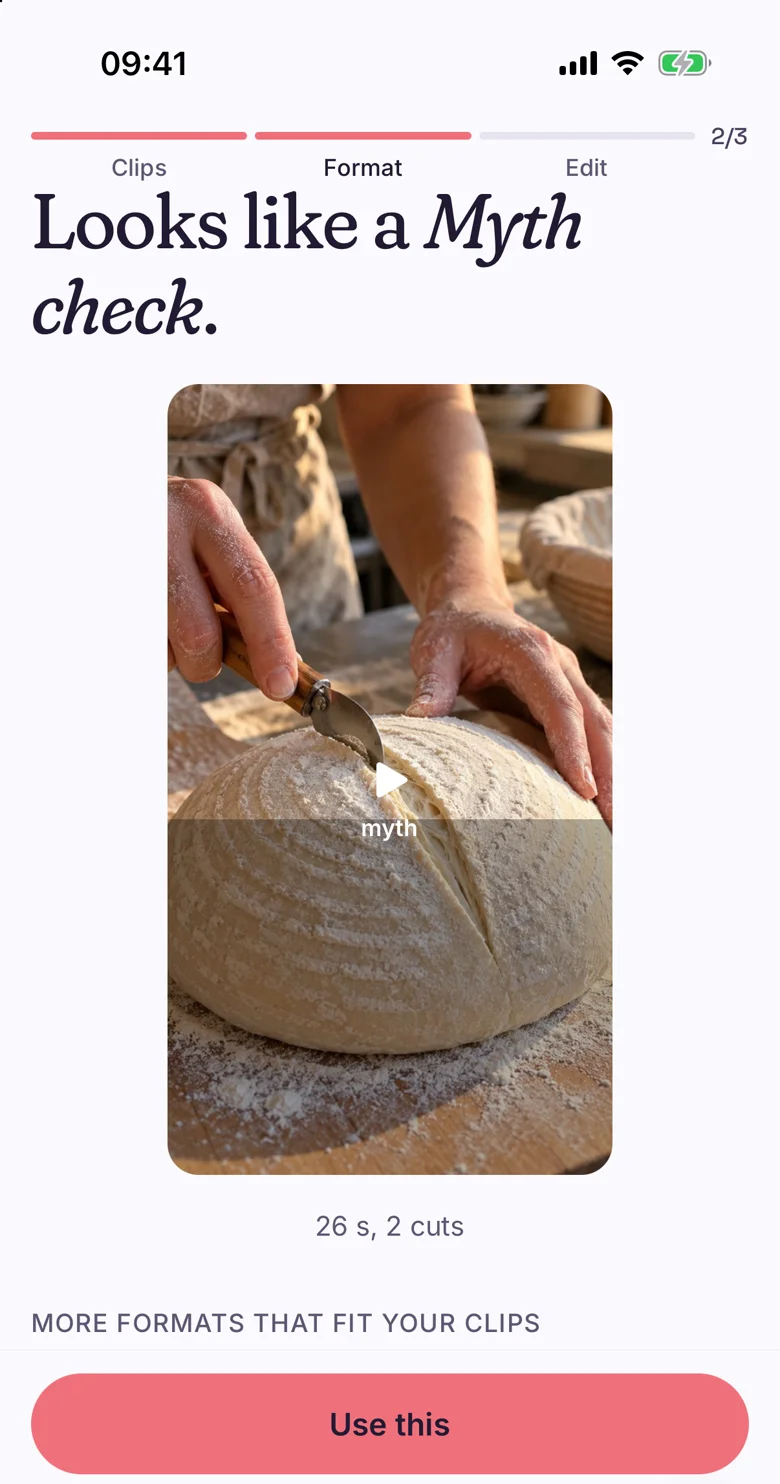
Make tells you what your clips look like.
The screen reads Looks like a Myth check, with the length and the number of cuts (26 s, 2 cuts here) and one button, Use this. Under it, more formats that fit your clips are listed so you can pick another.
Not seeing yours? Describe it, in a line. How formats work.
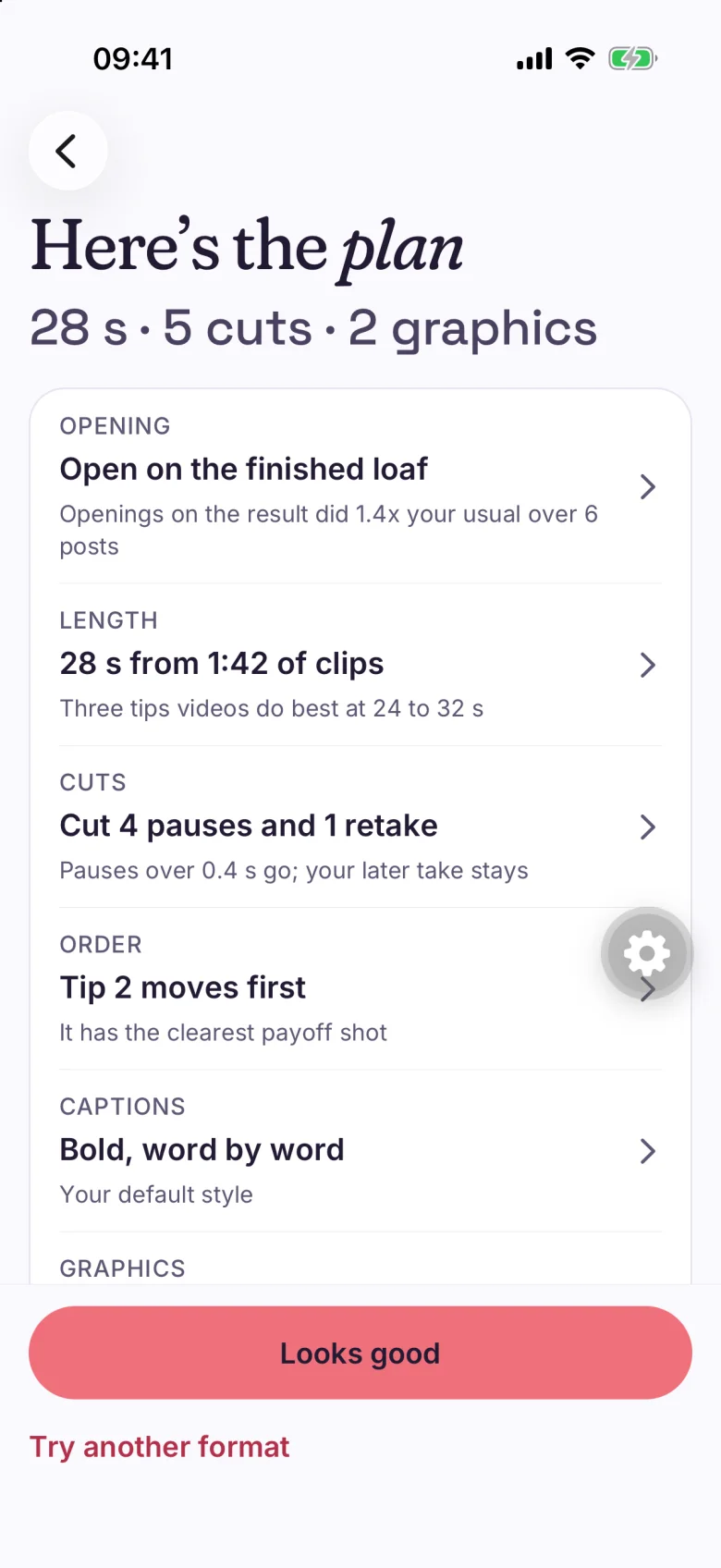
One line for each choice, and the reason for it.
Before the edit runs you see Here's the plan: the opening, the length, the cuts, the order and the captions. Each row says why it was chosen, so you can disagree with a reason instead of guessing at a result.
Looks good starts the edit. You can leave the screen while it runs.
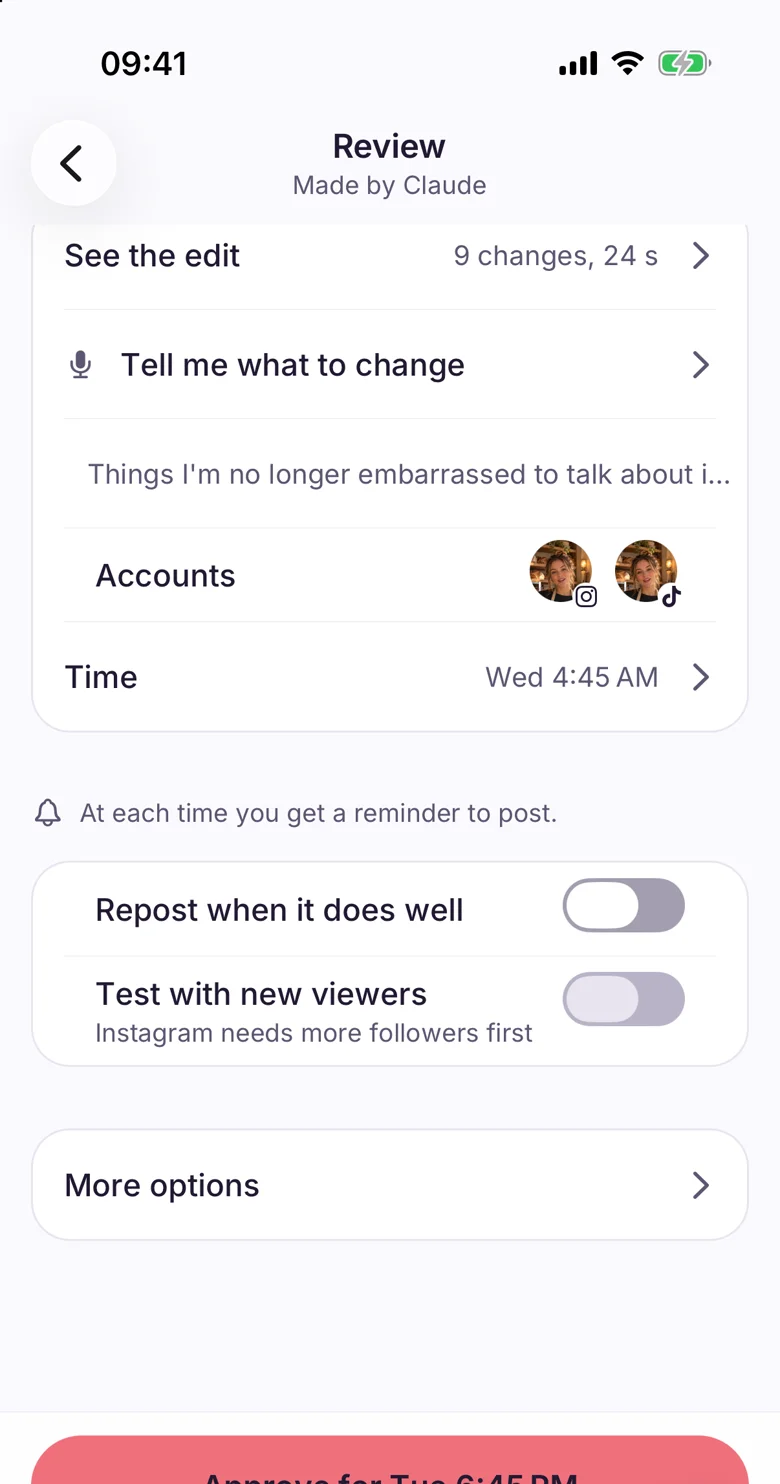
Say what you want different.
On Review, the row Tell me what to change takes a sentence about the video, such as a shorter opening or a different order. See the edit lists the changes made, so you can check what happened.
Style and graphics are part of the same edit: pick a look on the styles page and see the graphics page for stat cards and lower thirds.
- Shorter opening
- Cut the pause
- Move the stat first
Problems come up before you post.
What it looks for
A cut inside a word, a shot under two seconds, text over a face and sound that peaks too loud.
What you see
Review lists what to fix as one row, with a Fix button next to it. Fix it, then watch the video again.
What you approve
You approve each video in Make, with the accounts and the time shown on the same screen. TikTok posts are sent to your TikTok inbox to finish.
Start from your clips.
A template editor starts with a layout and asks you to fill its slots. Make starts with the clips you already have, names the format they fit, and shows the plan it built from them.
You can still pick a different format from the list on step two.
Read the dated comparisons.
- CaptionsMake starts from your own clips and shows the plan first. Read Chockstone and Captions
- OpusClipMake cuts footage you filmed, with the reason for each choice on screen. Read Chockstone and OpusClip
- PromocutMake approves one video at a time on your phone. Read Chockstone and Promocut
Questions people ask.
What do I need to start?
An iPhone with clips in your camera roll. Pick them in the order you want, press Next, and Chockstone names a format that fits. The Starter plan is free for 3 accounts.
Can I change the plan?
Yes. See the plan shows the opening, length, cuts, order and captions, each with its reason. After the edit, Tell me what to change on Review takes a sentence, and See the edit opens the changes.
Does anything post without my say?
You approve each video in Make. Review shows the accounts and the time, and the Approve button posts it for that time. TikTok posts are sent to your TikTok inbox to finish.
The facts, in one place.
- Does
- Cuts a video from clips you pick on your iPhone, shows the plan before anything is cut, and takes one sentence to change it.
- Plans
- Included on every plan: Starter, Creator and Studio.
- Limits
- Brands: Starter 1, Creator 5, Studio 25. Connected accounts: Starter 3, Creator 15, Studio 75.
- Networks
- Instagram, Facebook Pages, Threads, TikTok (sent to your TikTok inbox to finish), YouTube Shorts, LinkedIn profiles, Bluesky, Mastodon, Pinterest, Google Business Profile.
Make your first video today.
Free for 3 accounts. No card. Back to the home page or see every plan limit.